
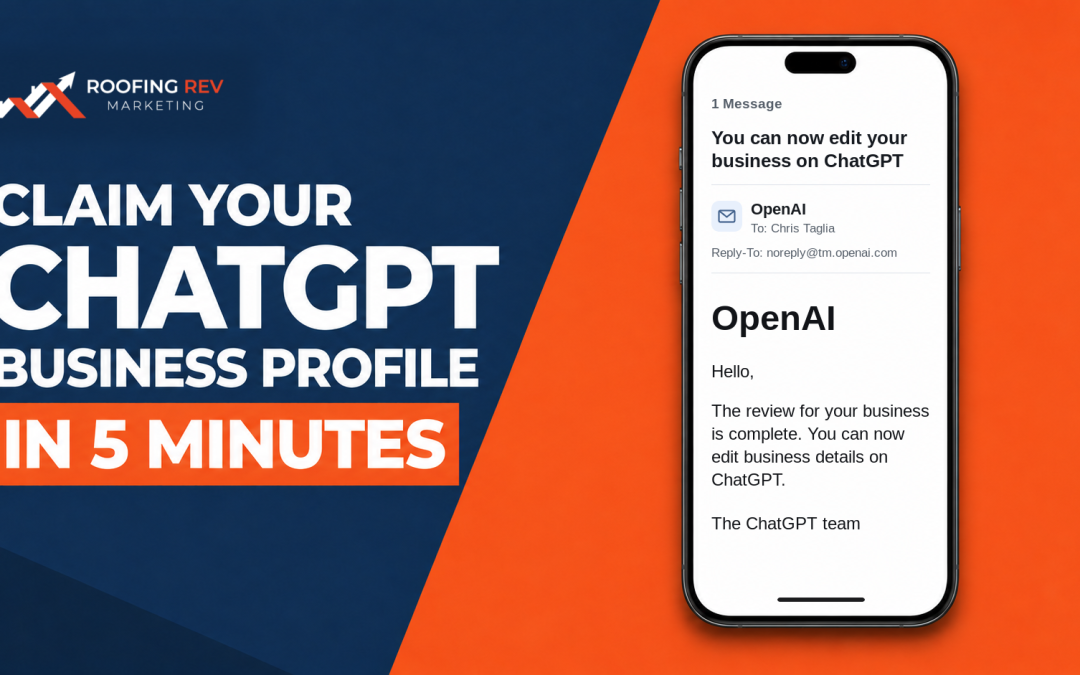
It took me about five minutes to claim and verify our ChatGPT business profile for Roofing REV Marketing. I’ll show you exactly what I did, including what to do if the phone code doesn’t come through. OpenAI’s review time can vary, and you can leave the dashboard while it runs.
Here’s how to claim your ChatGPT business profile, from finding your listing to getting the email that says you can edit it.
Why Should Roofers and Exterior Contractors Claim Their Profile?
Let’s say you replace flat roofs on occupied commercial buildings. If a property manager comes across your business in ChatGPT, does your description make it clear you do commercial work? Does the website link take them to the right company? Once you’re verified, Business Hub gives you a place to update details like your description, website, and service category.
You can also see available data for the past 28 days, including mentions and clicks to your website. I’d use those numbers as a starting point.
If you want to know whether that traffic turns into work, look at what happens after the click. Did someone go to your website and request a roof evaluation, and did that evaluation turn into a job you wanted? If people are clicking through but few are booking, here’s how to turn roofing website traffic into jobs.
OpenAI says claiming a profile doesn’t guarantee that ChatGPT will recommend your company more often.
So, if you’re a smaller roofer, see how I’d compete with larger roofing companies on Google and AI search.
Step 1. Find Your Business in ChatGPT Business Hub
Sign in to the ChatGPT account you want to use to manage the profile.
- Open ChatGPT Business Hub.
- Type your business name and select the correct listing from the dropdown. If two roofing companies have similar names, check the listing details before you pick one.
- Click Get started and confirm the ChatGPT account shown on the screen.
- Click Continue and choose one of the verification methods Business Hub offers for your listing.
Step 2. Verify Your Connection to the Business
In my walkthrough, Business Hub offered Business phone and Website domain. The options vary by listing. You might also see Business email or Shopify.
If you use the phone option, have ChatGPT send a code by text or automated call, depending on what it offers, then enter the code. If the number shown is a call-tracking number and the code doesn’t come through, check whether you can verify through your website domain. You can use that option without changing your public phone number.
If you use the website domain option, ChatGPT will show you a DNS TXT record. If your web person manages your DNS, send them the record type, name or host, and value exactly as they appear. Once they’ve added it to your domain’s DNS settings, return to Business Hub, click Verify domain, and follow the remaining prompts. If ChatGPT can’t find the record right away, give the DNS change time to show up and try again.
When the claim shows Under review, click Done. You can change screens or log out while the review continues. In my walkthrough, I went back to Business, opened my profile, and was able to click Verify even though the claim screen had shown Under review. If you see Verify, go ahead. If you don’t see it yet, watch for OpenAI’s email and check the dashboard again.
Step 3. Complete Identity Verification Through Persona
Open your business profile, click Verify, and follow the prompts to start verification through Persona. I was asked to scan my driver’s license, complete a face check, and enter my business information. What Persona requests can vary, so have your government-issued ID and business registration details handy.
As I said in the video, “You could continue from another device if you need to.” If you’re doing this on a desktop without a camera and that option appears, you can switch to your phone for the ID and face check.
Use your legal business name as it appears on your registration. If your trucks and website say ABC Roofing but your business is registered as ABC Exterior Services LLC, enter the LLC name in the legal-name field and use ABC Roofing in the DBA field if one appears. Check that your registered address and any tax ID or EIN requested match your records before you submit.
How Do You Know You’re Verified?
For me, the Verify button disappeared, and I got an email from OpenAI with the subject “You can now edit your business on ChatGPT.” My review took a few minutes. Yours may take longer, and OpenAI may email you for more information.
Once you can edit your business information, you’re ready for the next part. If someone else handles your local SEO, the admin who claimed the profile can invite them through Business Hub using their own ChatGPT account.
About the Author
Chris Taglia is COO of Roofing REV Marketing, where he works directly with roofing and exterior companies on SEO, Google Business Profiles, Local Services Ads, paid search, CRM automation, AI lead handling, and sales conversion systems. His recommendations are informed by active client campaigns, CRM data, sales-team meetings, and first-hand observations of how changes across Google Search, AI, Maps, and LSAs affect lead quality, appointment bookings, and revenue.

How to Set Up Google for Roofing Business (Step-by-Step)
If you haven’t learned how to set up Google for your roofing business, your company won’t show up when customers search things like “roof repair near me” — and you’re missing the easiest way to get calls without paying for leads. In fact, about 60% of all Google...

Roofing Companies: Stop Competitors from Cheating on Google Maps
Cheating competitors on Google Maps with fake or misleading Google Business Profiles (GBP aka GMB) are becoming a serious problem for roofing businesses trying to grow in their local markets. Some competitors on Google Maps are gaming the system—using fake addresses,...